How to import color palettes into Procreate
Add .swatches files to Procreate, understand palette downloads, and use hex colors when you only need a few swatches.
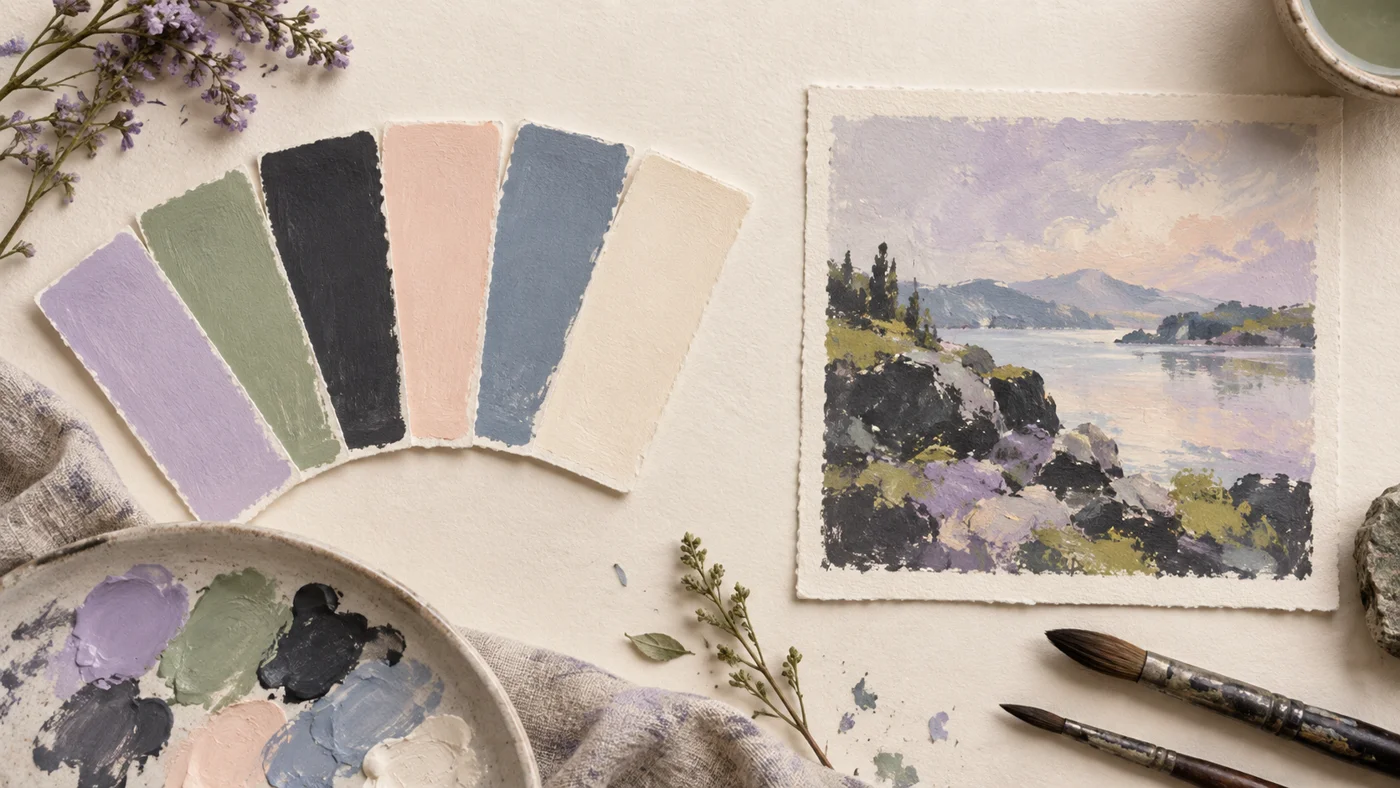
A Procreate palette is a collection of reusable colors. A .swatches file imports the palette directly; hex values let you enter individual colors without downloading a file.
Import a .swatches file
- Download the .swatches file to Files on your iPad. If the download is a ZIP, extract it first.
- Tap the .swatches file in Files to import it into Procreate. You can also use the palette import option inside Procreate’s Colors panel.
- Open Colors → Palettes and find the imported palette. Set it as the default if you want its colors available while drawing.
- For a collection with multiple files, import only the palettes you want. Each .swatches file is a separate palette.
Use a hex value instead
Copy a six-digit hex color from a DrawCrate palette page. In Procreate’s Colors panel, use the Value view and enter it in the hexadecimal field. Add that color to a palette slot if you want to keep it.
Hex values describe color, not the final appearance of every exported or printed image. Your document’s color profile, display and output process matter. Check a proof for print work instead of judging only from the screen.
Give colors a job
Choose a background, a dark structural color and one focal accent before filling a drawing. Limit the accent to a small area so it remains noticeable. A palette is a starting point, not a requirement to use every swatch equally.
If neighboring shapes merge when you zoom out, they may be too similar in lightness. Try the lightest and darkest swatches next to each other before changing the whole color scheme.
Keep the original palette
Duplicate or save a copy before replacing its swatches. Name your working version for the project so you can find it again. For a bundle, keep the separate files in one folder rather than renaming every download to the same generic filename.
References
Technical instructions are checked against these official resources. Interface wording may vary with your app version.
Featured images are illustrative artwork, not screenshots of Procreate.
Keep exploring on iPad
Find more resources in Brushes for Procreate+.
View the app ↗